- By default, To boot from the network through WDS, you need:
- set up the bios to boot on the network (F12 in many bios)
- Once you get a dhcp lease, you have to quickly strike F12 to really boot from the network
This second strike is a default safe option. If the boot order set the network before the hard drive, computers will try to boot from the network all the time. Most of the time, we just boot from the network to install OS, and then always boot from hard drive.
But if you correctly set up your bios, the second F12 is uneeded. You just have to replace pxeboot.com by pxeboot.n12 to remove it:
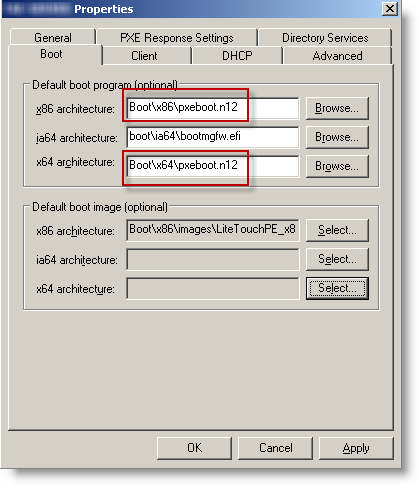
If you already have an important number of computers deployed, you can centrally configure their bios settings. Dell and HP provides central tools to set their bios remotely (generally through an executable that is deployed:
- Dell: Dell Client Manager
- HP: HP Client Manager
Month: January 2010
From dedicated server to Amazon EC2
I am on the way to migrate from a dedicated server (Dedibox, a french provider) to Amazon EC2. Here are my first feedbacks from Amazon Cloud..
Why i am migrating
My current provider is not allowing true virtualization on theirs servers. Their hardware is strong (Dedibox Pro products), but they prevent Hypervisor through their switches which shutdown port whith more than one mac address. So, without VMware ESXi or Hyper-V, i failback on VMware server on top of a CentOS.
VM are just slow, even with only 5 of them. So i have good hardware which i can’t truly use and so write off the cost. It’s not hazard, virtualization is the best and common way to use these 8GB of ram and quad core cpu.
At least another provider support ESXi, OVH. But they ask quite much money for that (15€/month to be allowed to have more IP…)
As my goal is to get Virtual machines at the end, Amazon EC2 looked quickly as a good choice. In the worth case, i will pay as much as now, but i will get what i pay for!
Step 1: Amazon calculator
Speaking about money, the first difficulty is to know actually how much it will cost! Well, to be honest, the fist one is to understand which instance is the right for me:
- On demand: no commitment, pay as you use,
- Reserved: Pay one shoot fee, and then pay as you use at a low cost,
- Spot: you don’t know when you will get your VM, but it will cost less than On demand, but more than Reserved.
As you guess, 1 VM On demand used (powered on) all time costs much more than a Reserved one used all time.
Their calculator have an design issue. By default, it includes the one time fee in the first month free. The quick way is to multiply the numbers you see per 12, and then you get scared for a wrong reason!
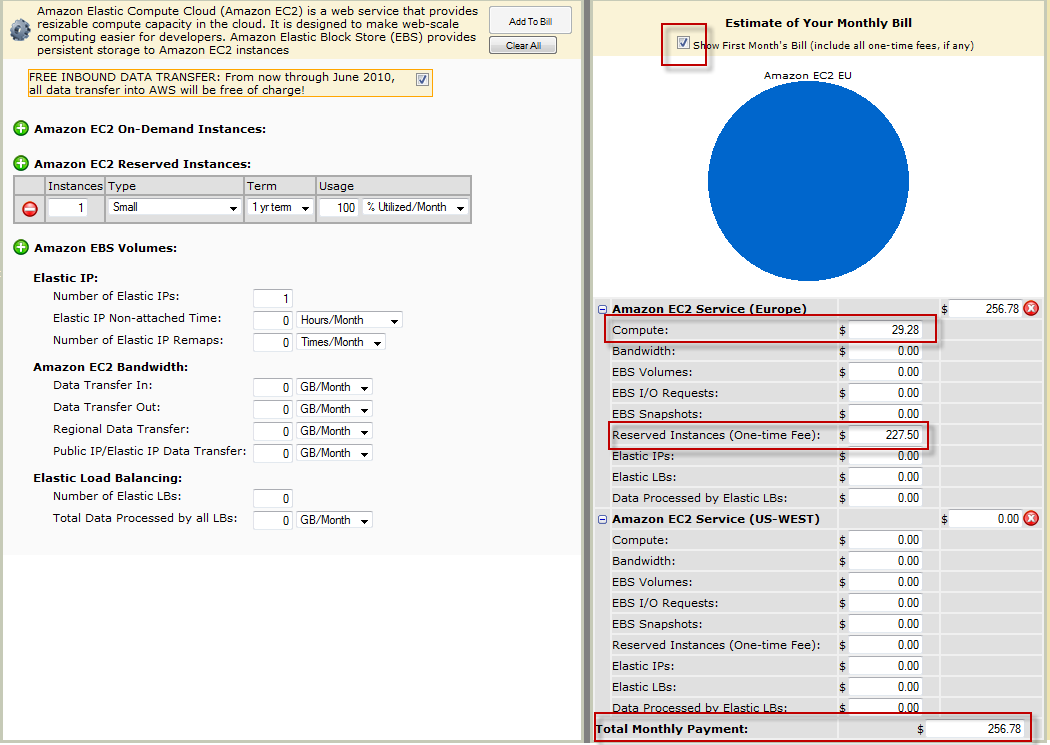
So, to get the final cost per month, for one small reserved instance, always on:
(227.50$ + 29.98 * 12) / 12= 48.23$ § month
The average cost of a VM is 34€ per month. For this amount, you have a Linux 32 bit with:
- CPU: 1 VCPU 1,7Ghz: 1 EC2 Compute Unit (1 virtual core with 1 EC2 Compute Unit)
- Memory: 1.7GB
- Storage: 169GB
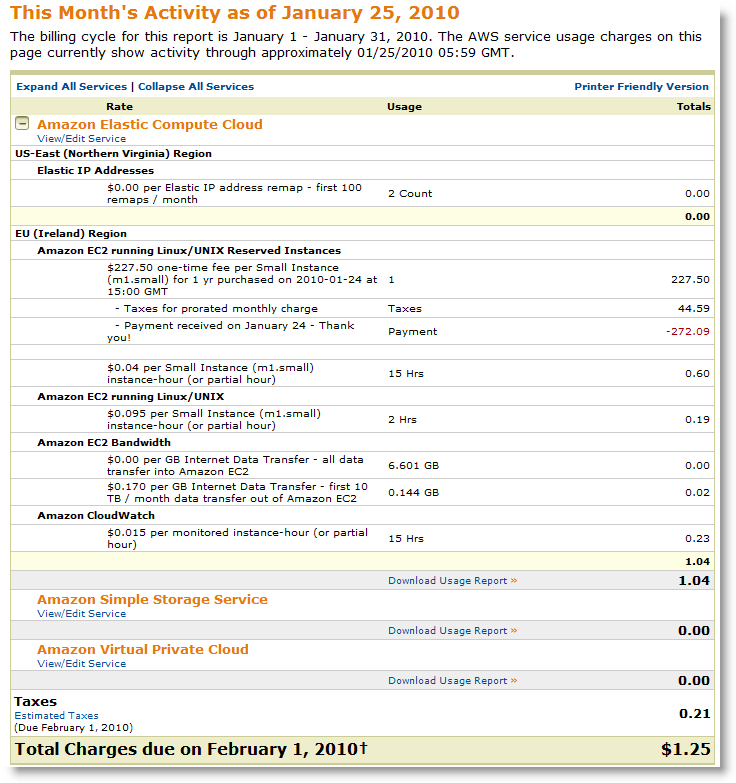
The weird thing is the 44$ of taxes on the bill (see later in this post)…
Step 2: Reserve an instance
Things are becoming serious! Before, i nevertheless made some benchmark with one On demand VM, to be sure about performance. We choose first the size of the VM (small in my case), where it will be hosted (2 sites in USA, 1 in Europe (Ireland). I chose Ireland, to save the latency over Atlantic. After 5 big clicks, we are pending. After 10 minutes, like on a Formula car race, we are active. Then ? Nothing happens ! No earthquake and no Virtual Machine in the list. Amazon Helps resources are nearly clueless. I finally understood that you have to create a On demand VM, in the same site as your reserved one. As simple as scary, because you don’t any word on the interface to comfort you are not going to pay 2 instances. You will have to believe in Amazon and their billing system. Well, it was ok for me, i didn’t pay twice!
So far, a reserved instance can only be a linux one. Windows is restricted to On demand, and it’s cost is higher than Linux, because the License comes with the VM.
The architecture choice (32/64 bit) depends on the size of the VM.
Step 3: create the VM
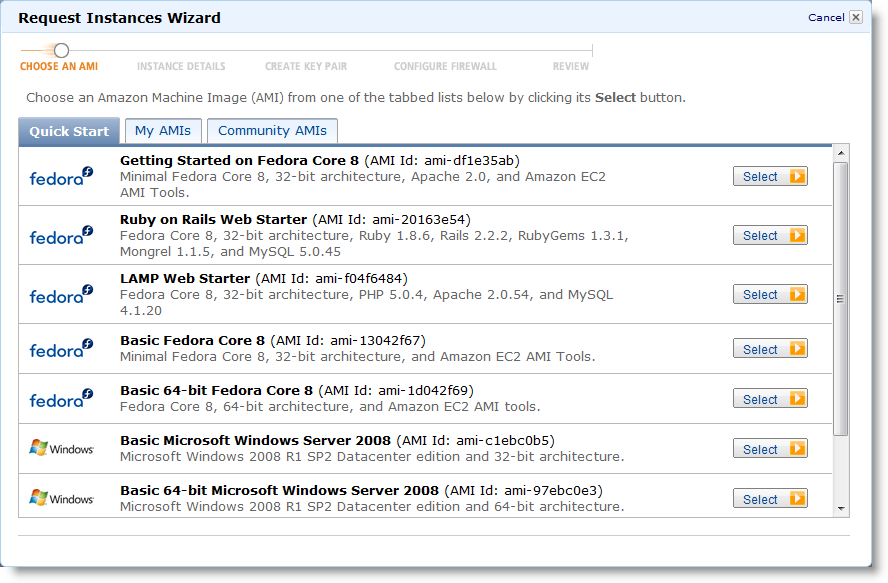
Now that i understood and still believe in Amazon, creating a VM is really simple, 5 clicks away and 5 minutes of waiting. You don’t install your own OS/ISO, but use a prepared image. They name them AMI (Amazon Machine Image). Amazon have 5 AMI, but the community extend the choice up to 971 AMI.
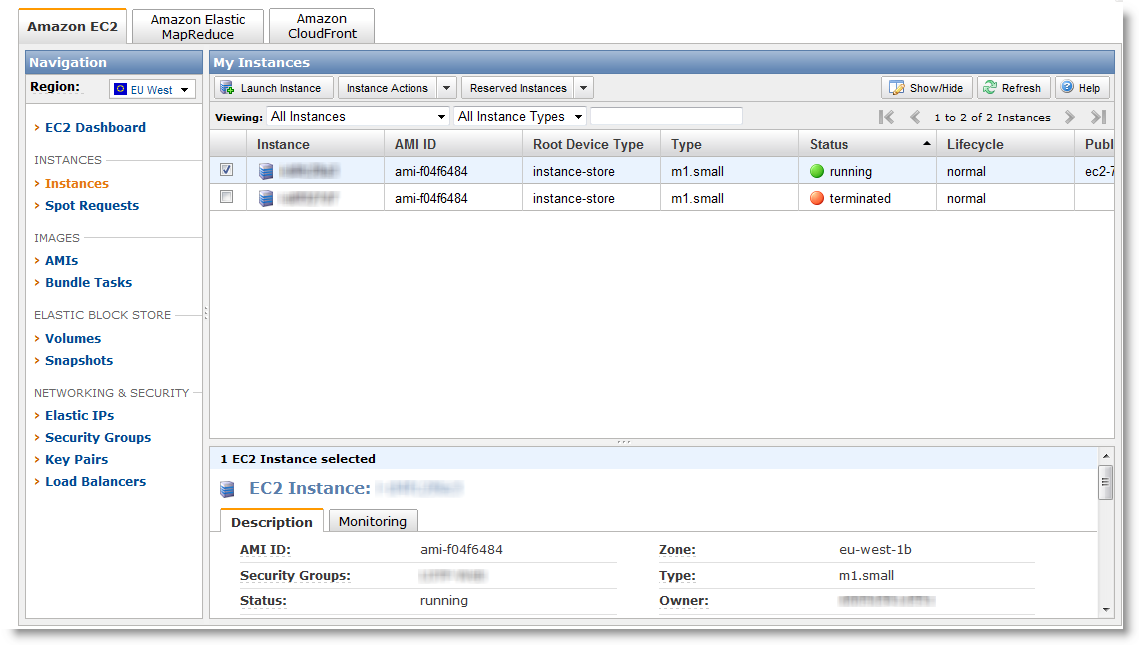 The storage for Linux is 10GB for system and 150GB for data. The VM see 2 partitions:
Filesystem 1K-blocks Used Available Use% Mounted on /dev/sda1 10321208 1383500 8413420 15% / /dev/sda2 153899044 6793004 139288416 5% /mnt none 870472 0 870472 0% /dev/shm
When you create the VM and later on, Amazon provide a firewall outside the VM. You can then manage flow that come in. It’s handy, since we save an iptable:

Step 4: Log on the instance
Now that the VM is running, it’s time to logon. A right click on the instance shows up this menu:
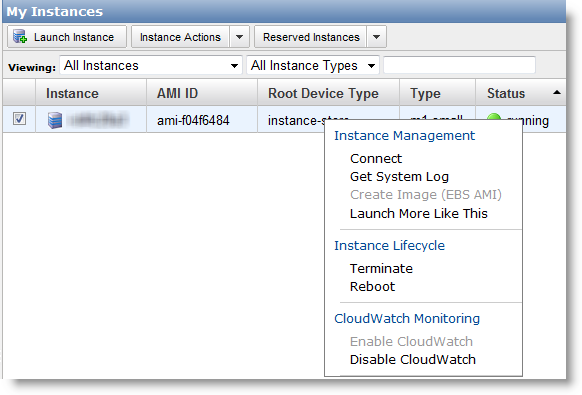
The Connect link gives:
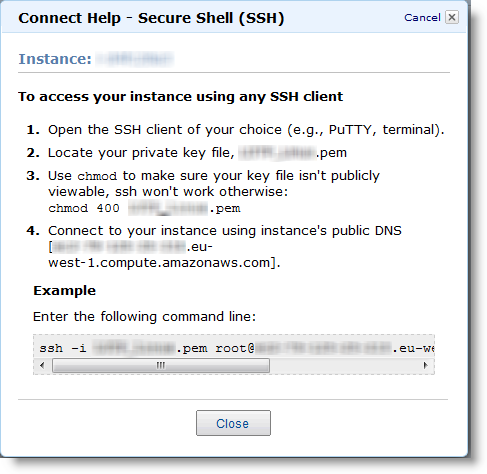
You have understood:
- No console access (Get System Log shows you the boot log):
- No root password, but instead a certificate generated when creating the VM)
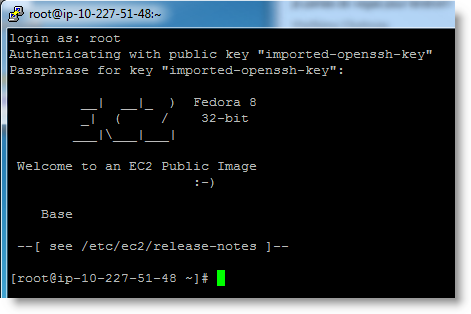
On Windows, Putty is often used a free ssh client. But Putty can’t understand the Amazon certificate. Anyway, Amazon explains how to workaround it here:
http://docs.amazonwebservices.com/AmazonEC2/gsg/2007-01-19/putty.html
In short, you have to use PuttyGen, from the author of Putty, to convert the Certificate in a one Putty understand. After, it works great:
Step 5: Performances
This is the critical part when it comes to Virtual Machines. Good news, i am very happy with the performance:
- Network: easily get 20Mb/s
- Storage: 121MB/s in writing (dd if=/dev/zero of=dd.dd bs=1M)
Why does Amazon provide that performance ? Because they bill the network as you use it (0.170$ per GB of traffic). Unlike others hosting that bill all included, Amazon won’t loose money if a big user comes in. On my previous provider, i could use 100Mb/s non stop without paying more. So they share a lot connections to outside (peering), and so network is slow.
I prefer to pay a bit more when i use more, but have this quality. We can follow nearly in real time our usage and so next bill:
Twitter: où sont les pétites ?
 Jusqu’à présent, j’ai jamais accroché au principe de twitter. Les informations que l’on y trouve sont très souvent aussi dans les blogs mais non structurées. Je pense cependant qu’il y a aussi des “pépites” éparpillées que l’on ne trouve pas dans les blogs ou ailleurs. Microsoft & Google doivent penser cela aussi car ils vont payer Twitter pour indexer son contenu
Pour donner une autre chance au microblogging, je me suis équipé de logiciels orientés twitter: TweetDeck sur le PC et l’iphone (gratuit). J’ai auss twitBird Premium sur iphone (pris pendant qu’il était gratuit). Il me semble mieux que la version TweetDeck, mais ce dernier à l’avantage de se synchroniser avec ce que je fais sur mon PC (à la Evernote).
Je pense aussi qu’on a tous une limite à la quantité d’information que l’on peut ingérer à la fois. J’ai déjà 155 suscriptions sur Google Reader, qui demandent déjà pas mal de temps pour absorber le lot d’information quotidien. Un petit tour dans la fonction Trends de Google Reader, m’indique que j’ai lu 3 027 posts en 30 jours, ce qui fait tout de même 100 posts par jour. Ce nombre est notamment dû à 3 sources qui font plus de 500 posts chacunes (forum scom, Journal du geek, PC inpact). Pour vraiment donner une chance à Twitter, il faut que je lui laisse une place dans la quantité d’information que je peux absorber.
Le forum SCOM est le flot le plus important. Je le suis car il y a quelques pétites de temps en temps qui me semblaient en valoir l’effort. Ne faisant cependant pas du SCOM tous les jours, il me semble le candidat idéal à remplacer par Twitter!
Cela me rappel lorsque je suis passé d’un dossier firefox avec tous les blogs que je suivais à Google Reader. Tous les jours, j’ouvrais d’un coup tous les blogs, et je les fermais à coups de ctrl+W si je connaissais déjà le premier post. Cela prenait du temps pour finalement peu de nouveau post (certains blog, y compris le mien on une activité faible). J’en suivais environ 75 de cette manière. En passant sur Google Reader, je peux en suivre 155, dont certains très actifs, car il s’agit en fait de news, qui sont relayées par beaucoup de blogs (je ne comprends pas la valeur de mettre sur son blog que telle version d’un soft est sortie, alors que plein de sites spécialisés relayent déjà l’info, mais bon…). Moyennant de faire de la place à Twitter, je pense pouvoir franchir une autre marche dans la quantité d’info que je peux ingérer. Le fait de pouvoir digérer une partie pendant les temps morts (transports, attentes…) via l’iphone facilite grandement la tâche.
J’ai donc crée un compte twitter (http://twitter.com/mathieuchateau). L’import de contacts pour trouver des gens à suivre est limité. On ne peut pas fournir un fichier csv ou autre, et l’import depuis Gmail ne fonctionne pas pour un compte Google Apps. J’ai dû exporter et importer dans un compte gmail standard pour en obtenir la substance moelle. 14 contacts utilisant twitter sur 426, c’est assez peu! Pas mal de sites confirmes que twitter se développe peu en europe et notamment en France, mes chiffres ne les contredisent pas.
Qu’aimeriez-vous trouver sur Twitter ? Pensez-vous me suivre sur Twitter ? Avez-vous des pétites (followers) que vous acceptez de partager ?